

Get started
- A Jira site admin installs Teamvane Planning Poker for Jira from the Atlassian Marketplace. Every new site gets a free trial, and sites with up to 10 users can use it for free.
- That’s it: there’s nothing to configure. The app finds your story points field on its own. If your team estimates other fields, see Where estimates are saved.
The app appears in three places:
- On every issue: the Planning Poker panel, among the issue’s app buttons.
- In each space: a Planning Poker page in the sidebar, for refinement sessions.
- In each space’s settings: Apps → Planning Poker, to choose where estimates are saved.
Estimate an issue
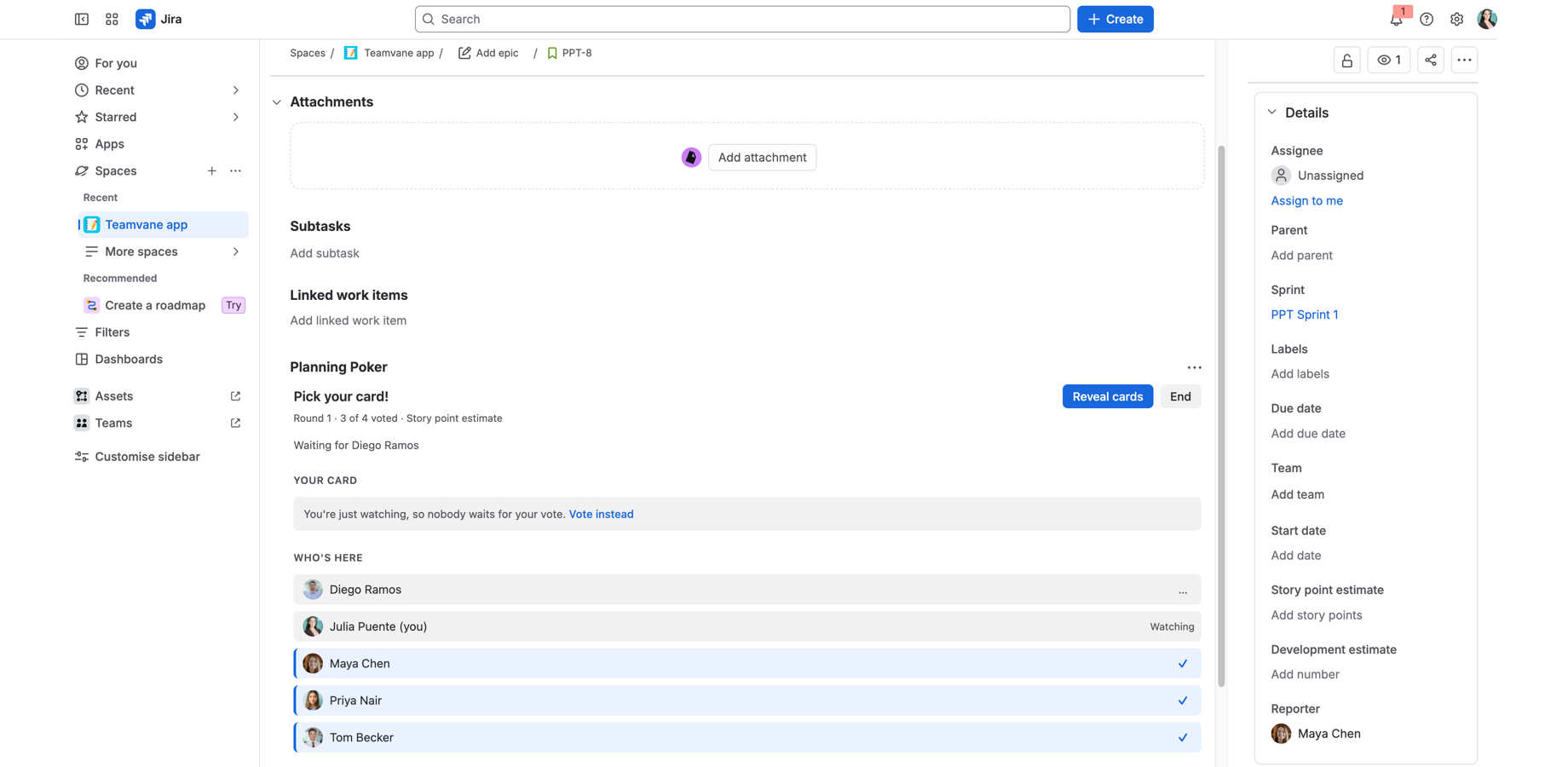
- Open the issue and open the Planning Poker panel.
- Choose a Deck: Fibonacci, Modified Fibonacci, T-shirt sizes or Powers of 2. The app remembers the last deck used in each space.
- Optionally tick Lead this session (see Leading a session), then click Start session.
- Everyone who opens the issue can pick a card. You can see who’s here, who has voted (highlighted) and who the team is waiting for, but never anyone’s card.
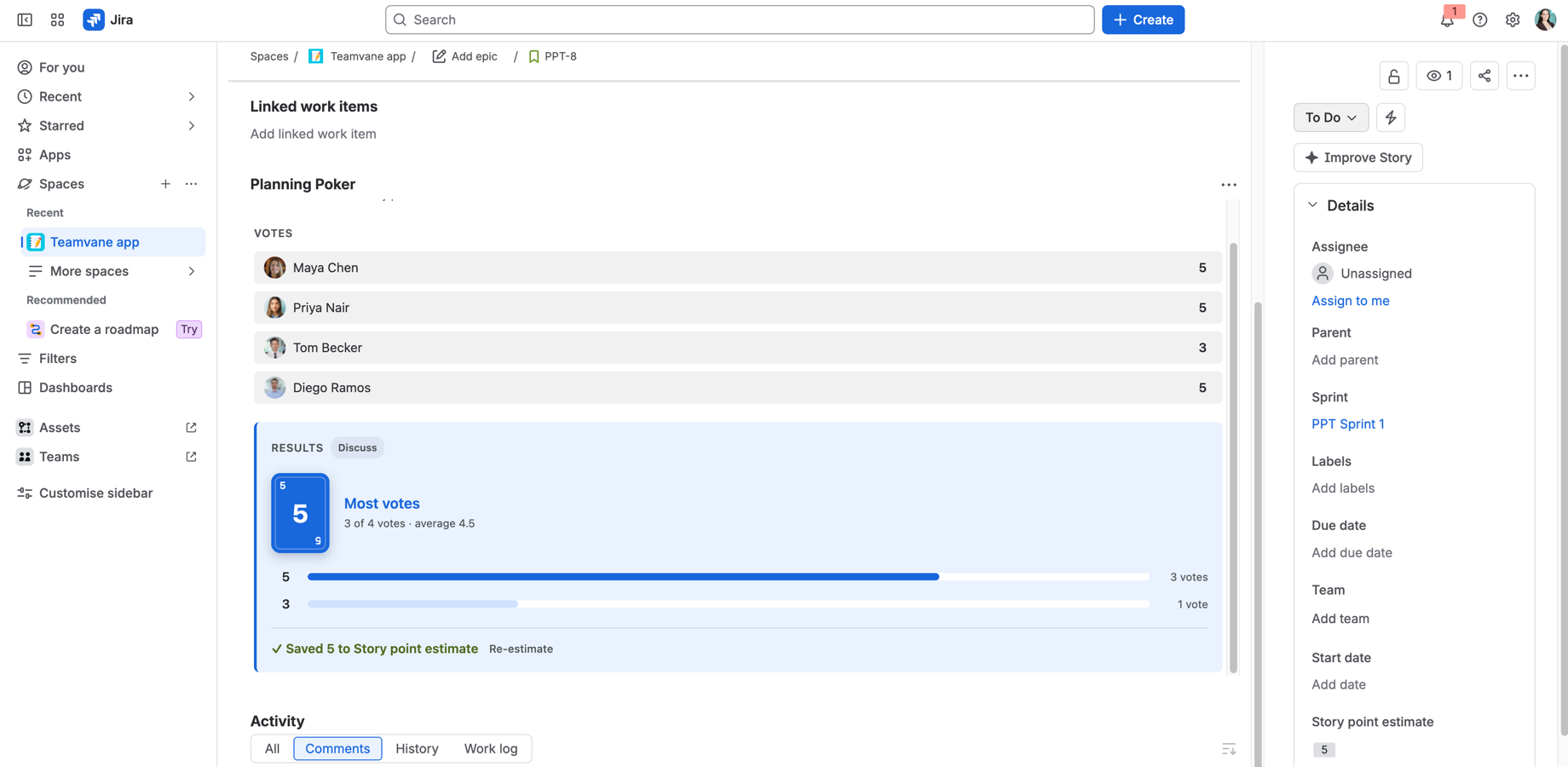
- Reveal cards shows everyone’s card at once, with the most voted card and whether everyone agrees.
- When everyone present has voted (at least two people), the cards turn on their own after a short countdown. Anyone can click Wait to hold that round and reveal it when the team is ready.
- Discuss, then click New round to vote again. Earlier rounds stay under Earlier rounds; hover over a card to see who played it.
- When the team agrees, click Save 5 to Story points (or whichever card and field). Jira’s issue view updates straight away for everyone looking at the issue.
- If your space estimates several fields, Next: QA estimate → starts a fresh round for the next field.
- Changed your mind? Re-estimate opens a new round on the same field; saving again replaces the value.
- Click End when you’re done. Sessions also end on their own 72 hours after the last activity.
Just watching. Product owners and others who listen but don’t estimate can click Just watching, so nobody waits for their vote and auto-reveal doesn’t count them. Vote instead switches back. The choice is remembered in your browser.
Refinement sessions
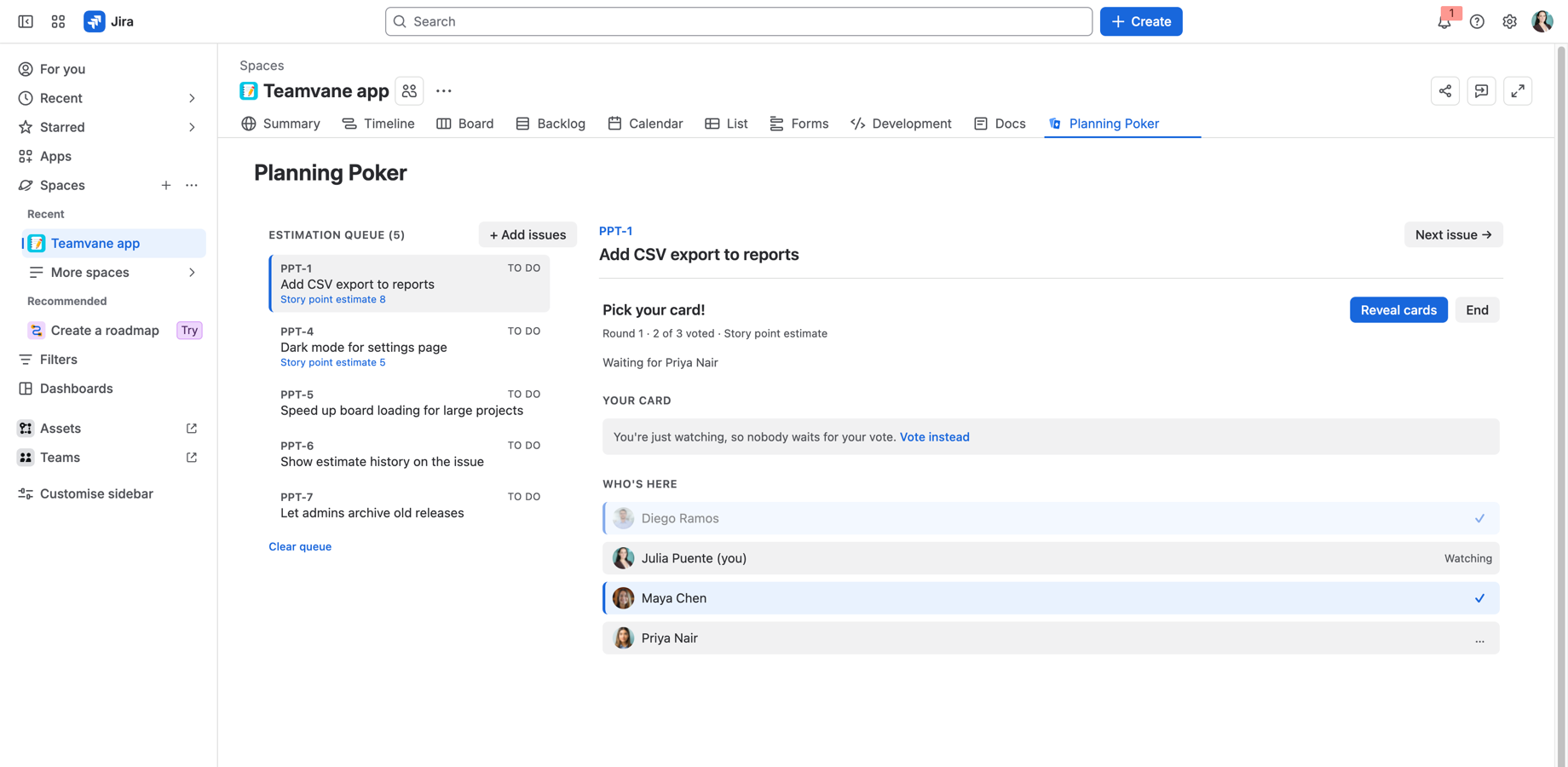
Use the space’s Planning Poker page to estimate several issues in a row, with everyone following along.
- Open the space and click Planning Poker in the sidebar.
- Click Add issues to build the estimation queue:
- quick filters: Unestimated, Recently viewed, Recently created, Backlog, Current sprint, Next sprint;
- search by text, or paste several issue keys at once.
- Pick an issue from the queue. Everyone on the page moves to it together, and the session works exactly like on the issue panel.
- The queue shows the estimates already saved, so you can see what’s left. Remove issues with ×, or use Clear queue.
The issue panel and the refinement page stay in sync: a vote cast on one appears on the other.
Where estimates are saved
By default, the app saves to your space’s Story points field, detected automatically.
To save somewhere else, or to estimate several fields in turn (for example Dev estimate, then QA estimate, then Story points):
- Go to the space’s settings → Apps → Planning Poker (“Where estimates are saved”). Only space admins can change it.
- Click Add a field and choose number fields used on the space’s issues, in the order your team estimates them (up to 5).
- Use automatic goes back to detecting the story points field.
Saving always happens as the person clicking, so Jira’s own permissions apply: they need permission to edit the issue, and the field must be on the issue’s edit screen. Only number cards actually played in the round can be saved.
Leading a session
With Lead this session, only the person who started the session can reveal the cards, start a new round, save the estimate, end the session or, on the refinement page, switch issues. Auto-reveal is off: the leader sees “Everyone has voted” and decides when to reveal. Everyone can see who’s leading.
If the leader leaves, anyone in the session can click Take over. The choice to lead is remembered per space.
Leading prevents accidental clicks in big meetings. It isn’t a security permission: Jira still decides who can see each issue.
Privacy and data
- Nobody sees a card before the reveal. This is enforced on the server, not just hidden on screen.
- The app runs entirely on Atlassian’s platform (“Runs on Atlassian”) and keeps its data in your site, following your site’s data residency.
- It stores only what a session needs (participants’ names, profile pictures and cards), and deletes it 72 hours after the last activity, or straight away when the session ends.
- “Who’s here” is shared with people who have Planning Poker open in the same space: a name, a profile picture and the issue they’re on, never a card or an issue title.
Details: Privacy Policy · Terms of Use · Data Processing Addendum · Security
Subscription
Sites with up to 10 users can use the app for free. Larger sites get a free trial, then a subscription through the Atlassian Marketplace. If a site has no active subscription or trial, the app shows “Planning Poker needs a subscription”. Ask a Jira admin to start one.
Troubleshooting
I can’t see the Planning Poker panel on an issue. Look among the app buttons under the issue’s title; in some layouts it’s under Apps. Once opened, the panel stays on that issue.
Someone sees something different from everyone else. After an app update, Jira keeps the version that was loaded when the page opened. Reload the page.
“Save” fails. You need permission to edit the issue, and the field must be on the issue’s edit screen. In a led session, only the leader can save.
The wrong field is suggested. A space admin can choose the fields in the space’s settings → Apps → Planning Poker.
Support
Email support@teamvane.com, in English, French or Spanish. We reply within one business day.
Planning Poker® is a registered trademark of Mountain Goat Software, LLC. Teamvane is not affiliated with Mountain Goat Software.